
VWAP+
VWAP+ is the average price everyone paid, weighted by how much they traded, reset at the sessions you choose, with up to six standard-deviation bands around it.
On this page
How to read it
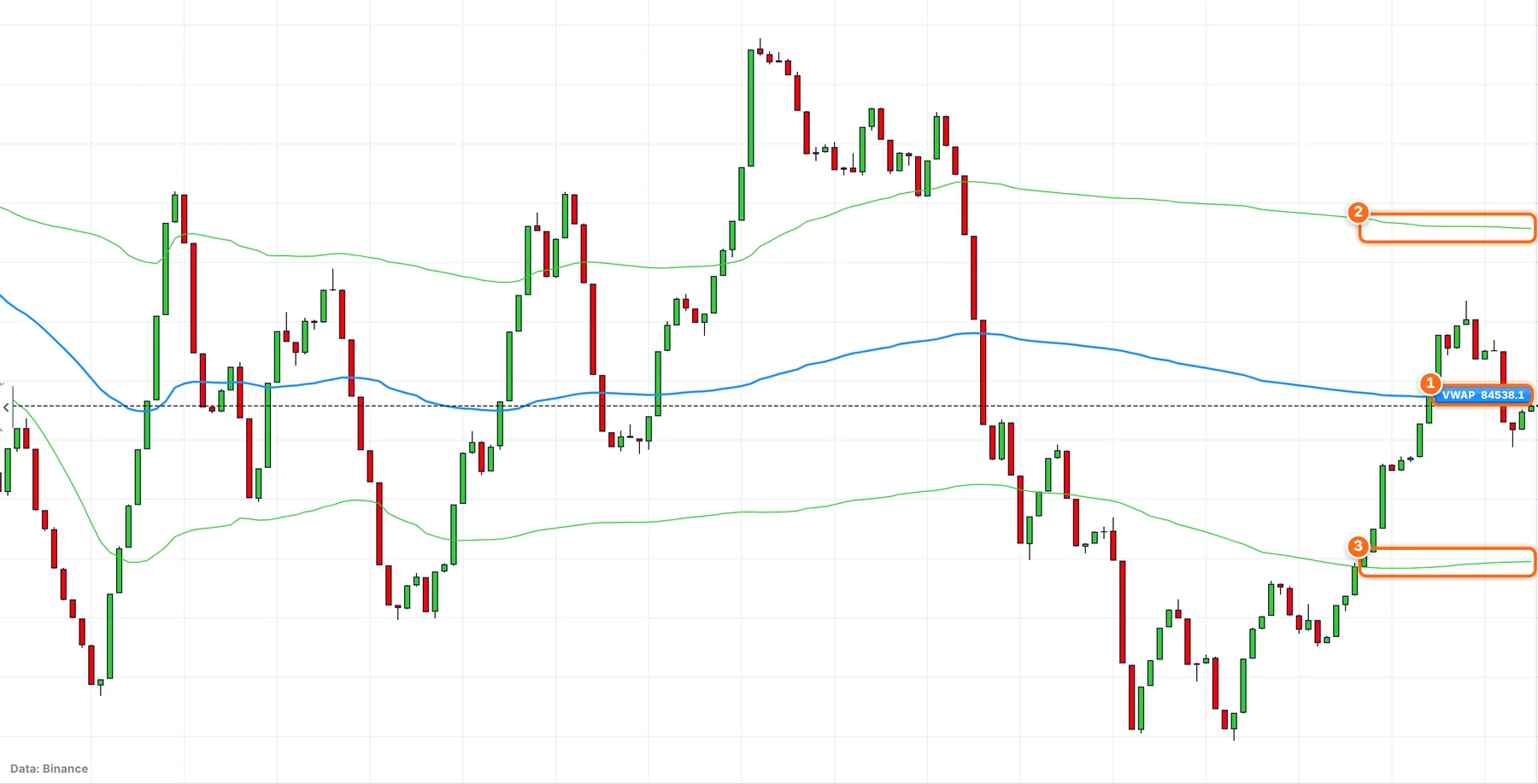
- The VWAP line and its tag on the price axis.
- The upper band.
- The lower band.
Price above VWAP means buyers are in profit on average and in control; below means sellers are. The bands show how far price has stretched from it, in standard deviations.
Many traders use it as a fair-value line: buying pullbacks to VWAP in an uptrend and selling rallies to it in a downtrend. Moves out to the outer bands are stretched and often snap back.
Turn it on
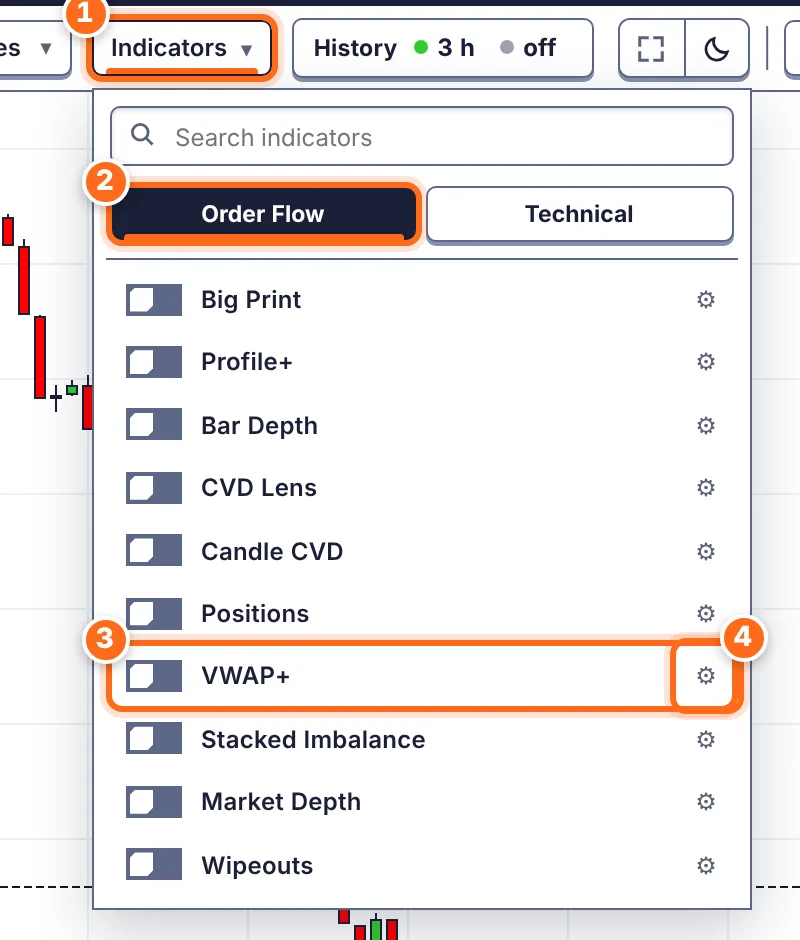
- Indicators ▾ in the toolbar.
- The Order Flow tab.
- The VWAP+ row: the switch turns it on or off.
- The ⚙ opens its settings.
- Click Indicators ▾ in the toolbar.
- Stay on the Order Flow tab, or type vwap in the search box.
- Click the switch next to VWAP+. It draws on the chart straight away.
- Click the ⚙ on the same row to open its settings.
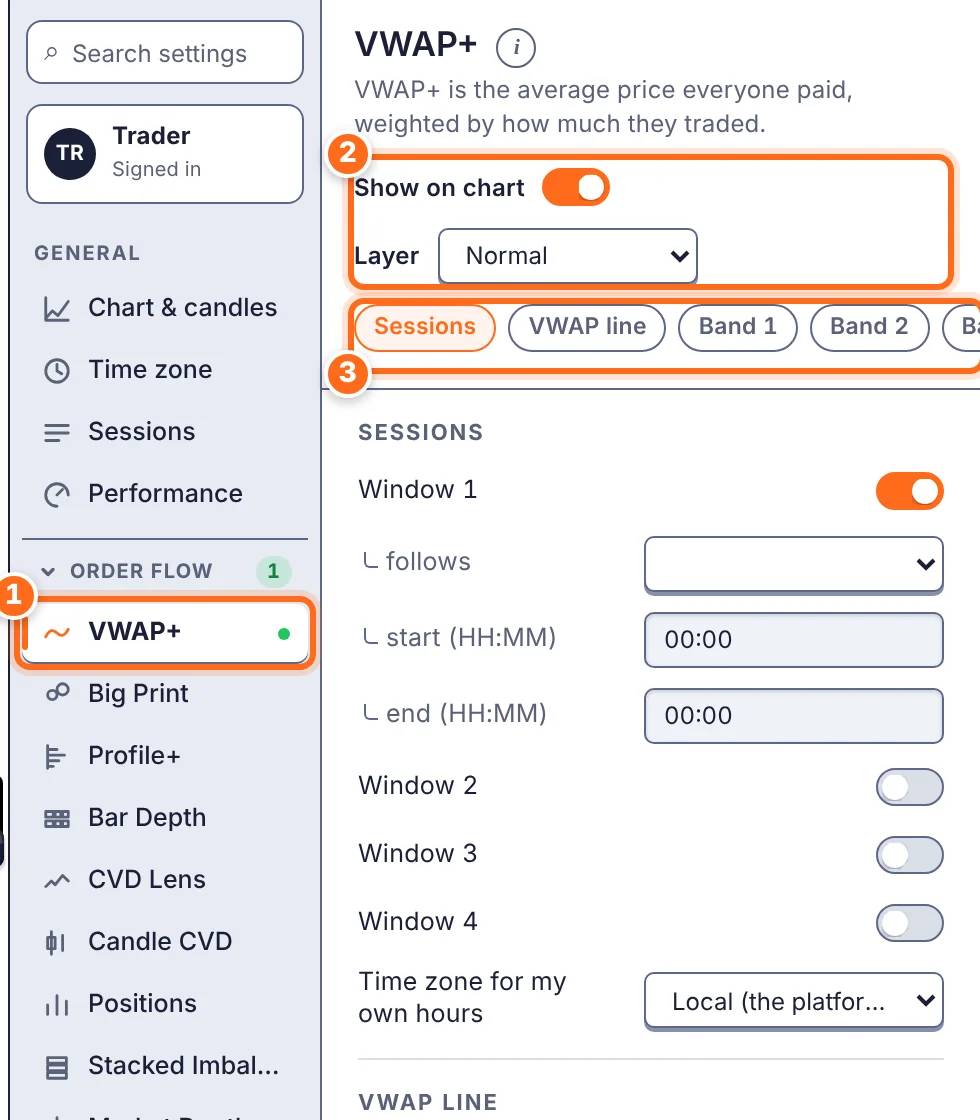
- VWAP+ in the settings menu. The green dot means it's on for this chart.
- Show on chart (and Layer, where the tool has one: normal, behind the candles or over everything).
- Jump straight to a section of its settings.
VWAP+ is switched on per chart tab, so each chart can have its own tools.
Session windows
VWAP+ resets each time one of its windows starts, and holds flat outside every window. You can turn on up to four windows, each with its own start and end.
- 00:00 to 00:00 is the whole day.
- A window can wrap past midnight (for example 22:00 to 06:00).
- A window can follow a session from your library (Asia, London, New York). Its hours, time zone and daylight saving then carry straight through, and any change to the session updates VWAP+ too.
Set the time zone for your own hours to the platform time zone or UTC.
Settings
| Setting | What it does |
|---|---|
| Sessions | |
| Window 1–4 follows | My own hours, or a session (Asia, London, New York). |
| Start · End (HH:MM) | The hours for My own hours. |
| Time zone for my own hours | The platform time zone or UTC. |
| VWAP line | |
| Colour · Thickness | How the line looks. |
| Dynamic bull/bear colouring | Colours the line by direction, with your own bull and bear colours. |
| Prior-session line | Carries the previous session's final VWAP across, with its own colour and thickness. |
| Include VWAP and bands in chart auto-scale | Keeps them on screen when the chart fits its price scale. |
| Band 1–6 | |
| Enabled · Deviation multiplier | Turn each band on and set how many standard deviations from VWAP it sits. |
| Line colour · Thickness · Fill · Fill opacity | How each band looks, with an optional shaded fill. |
| Templates | |
| Save as template · Load | Save your setup under a name and load it on any chart. Every order-flow tool has templates at the bottom of its settings. |
Tips
Questions
Why is VWAP flat?
Price is outside every window you turned on. VWAP+ holds flat until the next window starts.
Can I have a daily and a London VWAP at once?
Yes. Use two windows: one 00:00 to 00:00 and one following London.