Market Depth
Market Depth draws the live order book beside the price: every resting limit order, as a bar of size at its price. Turn on Aggregate exchanges and it adds up the same coin across all five exchanges.
On this page
How to read it
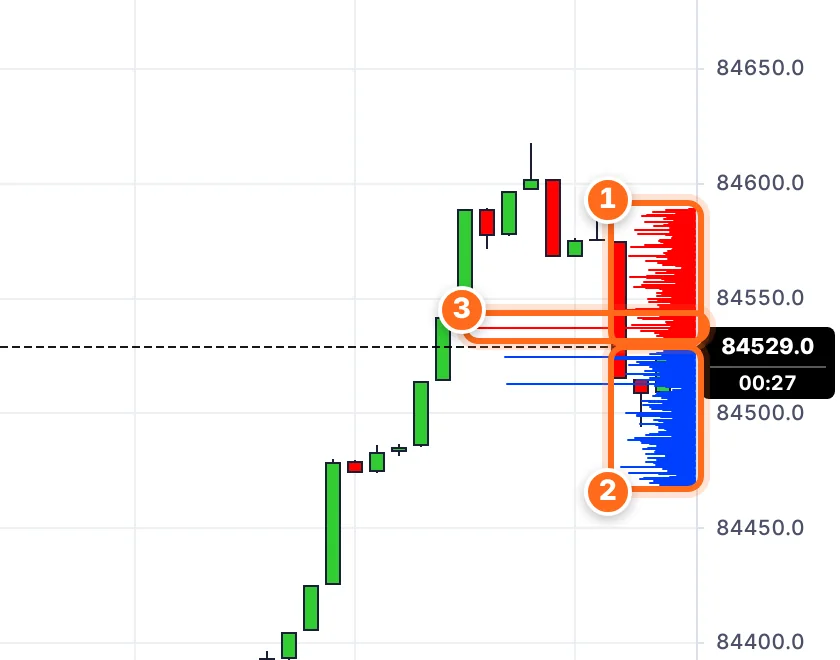
- Asks: sell orders waiting above the price.
- Bids: buy orders waiting below the price.
- A wall: an unusually big level stands out as a long bar.
Each bar is one price level. The longer and stronger the bar, the more contracts are waiting there. Bars update as the book changes, many times a second.
Big levels (walls) can slow price down or stop it for a while. Watch what happens when price reaches one: does it hold and get eaten slowly, or does it vanish just before price arrives? Orders that keep disappearing as price gets close are often there to look big, not to be filled.
Turn it on
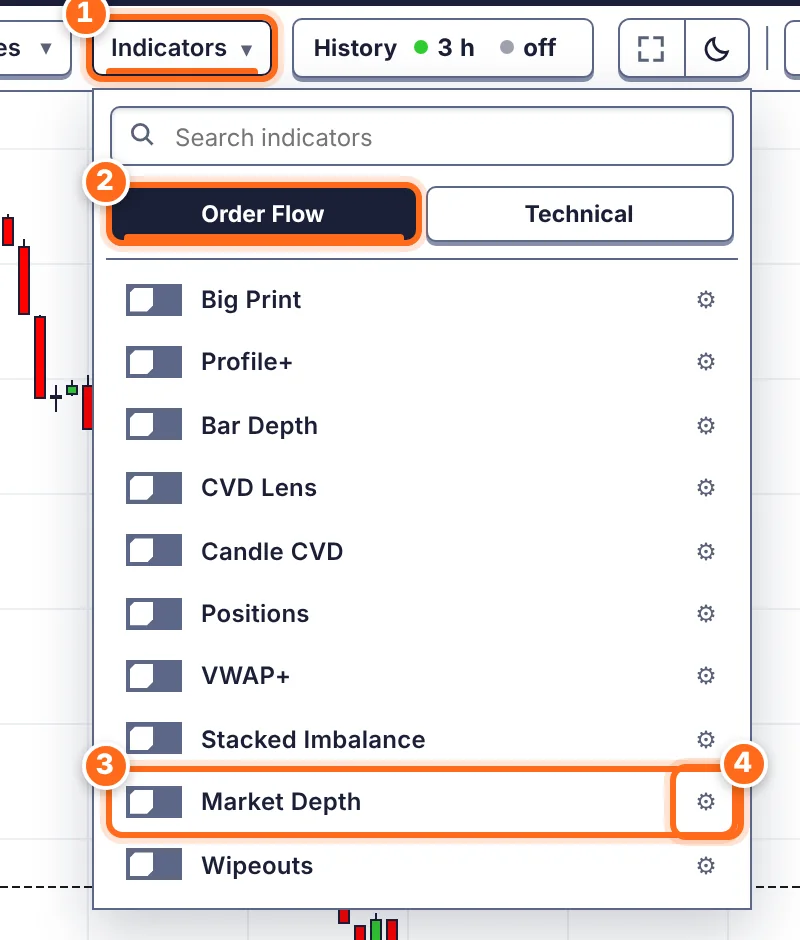
- Indicators ▾ in the toolbar.
- The Order Flow tab.
- The Market Depth row: the switch turns it on or off.
- The ⚙ opens its settings.
- Click Indicators ▾ in the toolbar.
- Stay on the Order Flow tab, or type depth in the search box.
- Click the switch next to Market Depth. It draws on the chart straight away.
- Click the ⚙ on the same row to open its settings.
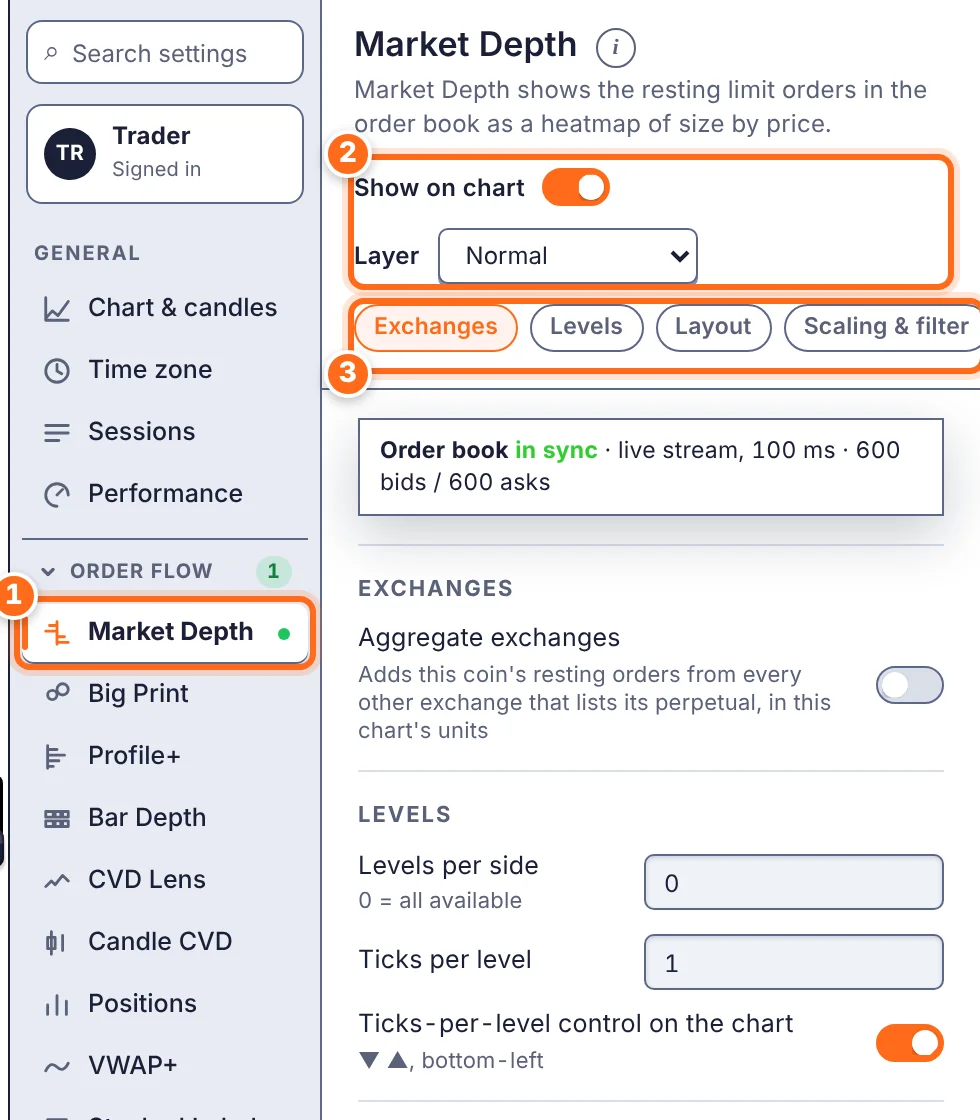
- Market Depth in the settings menu. The green dot means it's on for this chart.
- Show on chart and Layer (draw it normally, behind the candles or over everything).
- Jump straight to a section: Exchanges, Levels, Layout and the rest.
Market Depth is switched on per chart tab, so each chart can show it or not. The box at the top of its settings tells you how the book is connected, for example Order book in sync · live stream, 100 ms · 600 bids / 600 asks.
Change the detail on the chart
A small DEPTH ▼ ▲ control sits at the bottom left of the chart while Market Depth is on. Each click changes Ticks per level one step, so you can zoom the book in and out without opening settings. Turn the control off in Levels → Ticks-per-level control on the chart if you don't want it.
Aggregate exchanges
Turn on Aggregate exchanges (the first section of the Market Depth settings) and each price shows the combined resting size for the same coin's perpetual on Binance, Bybit, OKX, Bitget and Hyperliquid. Exchanges that don't list the coin are skipped.
- Sizes add up 1 to 1. Every exchange's book is converted to real coins first, then into your chart's units, so contract sizes (OKX contracts, 1000PEPE and the like) never inflate the total.
- Real prices, never closer than they are. Each exchange's orders sit at their real prices, placed on your chart's ticks: bids round down and asks round up.
- Only the depth bars change. The DOM, your orders, paper fills and alerts stay on the chart's own exchange.
- Perps only. On a spot chart the switch is greyed out.
- Saved per chart tab. Load a new coin in that tab and it combines the new coin straight away.
- Everything works on the combined book: bar sizes, best bid / ask, walls, minimum volume, levels per side, scaling and numbers.
The box at the top of the settings gets one line per exchange: in sync (with its level count and tick), syncing, not listed, or left out with the reason. An exchange is left out, never guessed, if its contract size can't be confirmed or its price is more than 3% away from your chart's.
Settings
| Setting | What it does |
|---|---|
| Exchanges | |
| Aggregate exchanges | Combine this coin's perp order books from every supported exchange that lists it, in this chart's units. |
| Levels | |
| Levels per side | How many price levels to draw above and below price. 0 = every level the feed sends. |
| Ticks per level | How many price ticks are grouped into each bar. |
| Ticks-per-level control on the chart | Shows the DEPTH ▼ ▲ control at the bottom left of the chart. |
| Layout | |
| Max bar width (px) | How long the biggest bar can be. |
| Right offset (px) | Gap between the bars and the price axis. |
| Bar direction | Right to left (from the price axis into the chart) or left to right. |
| Scaling & filter | |
| Bar scaling | Visible max: the biggest level on screen is full width. All levels max: the biggest level in the whole book is. Fixed volume: full width is a size you set. |
| Fixed max volume (contracts) | The full-width size when scaling is Fixed volume. |
| Min volume to show (contracts) | Hides levels smaller than this, to clean up a busy book. |
| Colours | |
| Bid colour / Ask colour | Colours of the buy and sell sides. |
| Shade by size | Bigger levels are drawn darker. |
| Bar border | An outline on each bar; Auto uses a darker shade of each bar, or pick your own colour. |
| Highlights | |
| Best bid / ask solid | Draws the best bid and best ask at full strength. |
| Walls: hatched with a signal tick | Marks unusually big levels with hatching and a small tick. |
| Wall threshold mode | Multiple of average (for example 5× the average level) or Absolute volume (a size in contracts). |
| Wall threshold | The multiple or the size that makes a wall. |
| Beyond feed depth | |
| Keep levels beyond feed depth (hatched) | Exchanges only stream the levels near price. Levels that scroll out of the feed stay on screen, hatched, so a wall you saw doesn't just disappear. |
| Memory expiry | How long those remembered levels stay, in seconds. 0 = never expire. |
| Numbers | |
| Show volume numbers | Writes the size on each level once rows are tall enough. |
| Number position | Inside the bar (outside when it doesn't fit) or beyond the bar. |
| Abbreviate (12K) · Decimals · Font size | How the numbers are written. |
| Refresh | |
| Redraw interval (ms) | How often the bars redraw. Higher is lighter on slower computers. |
| Templates | |
| Save as template · Load | Save your Market Depth setup under a name and load it on any chart. |
Tips
Questions
Why are my bars so thin?
The coin's tick is tiny, so each bar holds very little. Raise Ticks per level (or click ▲ on the DEPTH control) until the levels fill out.
Does Aggregate exchanges change where my orders go?
No. Orders, the DOM, paper fills and alerts always use the chart's own exchange. Only the Market Depth bars are combined.
Why is an exchange "left out"?
It can't be matched safely: its contract size couldn't be confirmed, or its price was more than 3% from your chart's (often a different coin with the same name). The status line says which.
Why don't I see it in Replay?
Order books aren't recorded, only trades. Market Depth needs the live book.