Paper trading
Practise trading on the live market with a paper account. Orders, take profits, stop losses and your position all show on the chart, where you can drag them.
On this page
The Trade panel
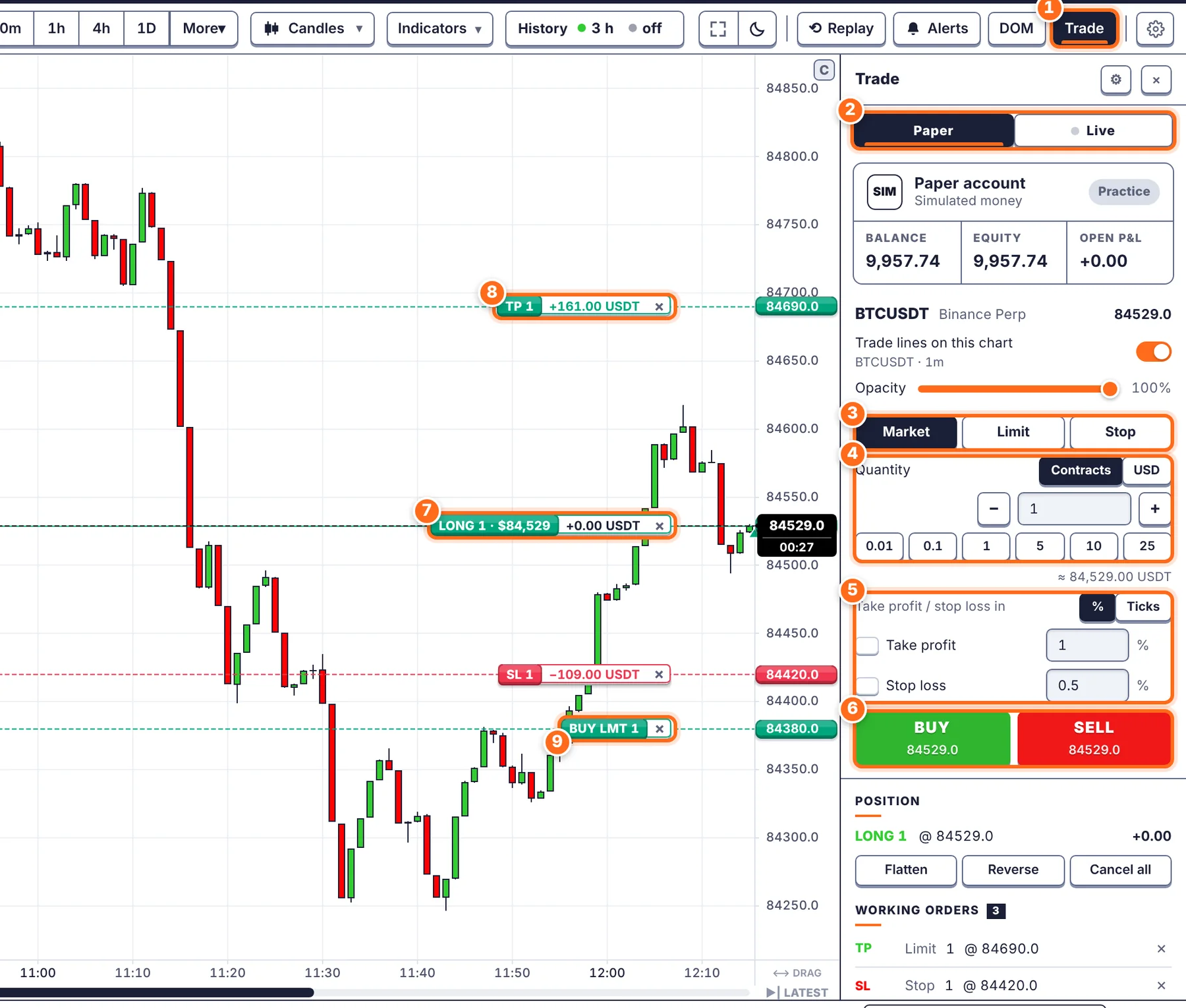
- Trade in the toolbar opens the panel.
- Paper: a practice account with simulated money, on the live market.
- Order type: Market, Limit or Stop.
- Quantity in contracts or USD, with quick sizes.
- Take profit and Stop loss, in % or ticks.
- BUY and SELL show the price you'd get right now.
- Your position line: size, average price and open P&L. × closes it.
- A take profit (TP) line. Drag it to move it.
- A working limit order. Drag it to move it, × to cancel.
The top of the panel shows your paper Balance, Equity (balance plus open P&L) and Open P&L. Under it are the coin you're trading and its last price.
Place an order
- Click Trade in the toolbar.
- Pick Market, Limit or Stop. Limit and Stop show a price box; Last fills in the last traded price.
- Set the quantity. Switch between Contracts and USD, type a number, use − and +, or click a quick size. The line under it shows roughly what the order is worth.
- To attach exits, tick Take profit and / or Stop loss and set the distance, in % or Ticks.
- Press BUY or SELL.
| Order type | How it fills |
|---|---|
| Market | Fills straight away at the best price on the other side of the book. |
| Limit | Waits at your price. A buy limit sits below the market, a sell limit above. |
| Stop | Waits until the market trades to your price, then fills. A buy stop sits above the market, a sell stop below. |
Manage it on the chart
- Drag an order line up or down to move it. Click × on its tag to cancel it.
- Drag your position line up or down to add a take profit or stop loss at that price.
- Drag a TP or SL line to move it; × removes it.
- The last tag you touched draws on top and gets the clicks first, so overlapping tags stay easy to grab.
- Right-click the chart to place a buy or sell limit or stop at that price.
- A limit dragged through the current price fills straight away at the market price.
Position and working orders
Under Position you see your side (LONG or SHORT), size, average price and open P&L.
| Button | What it does |
|---|---|
| Flatten | Close the whole position at market. |
| Reverse | Close and open the same size the other way. Any TP and SL flip with it: same distance from the new entry, on the other side. |
| Cancel all | Cancel every working order on this coin. |
Working orders lists your limits, stops, TPs and SLs with their prices; × cancels one. Other positions lists what you hold on other coins.
Fills and trades
- Fills lists every fill with its time, side, size, price and profit. It shows the latest one; click the header (▾) to see more.
- Trades lists each closed trade: side, coin, size and net result after fees, with entry and exit times and prices. The summary above it shows your Net, Win rate and Fees. Click the header to see the full list.
- Point at a trade to see its gross result, fees and how long it lasted.
Paper settings
Click ⚙ at the top of the panel. Click ← to go back.
| Setting | What it does |
|---|---|
| Starting balance | What the paper account starts with. |
| Maker fee / Taker fee (%) | Fees charged on limit (maker) and market or stop (taker) fills, so results match a real account. |
| Limits fill on touch | On: a limit fills as soon as the price touches it. Off: only when the market trades through it, which is stricter and more realistic. |
| Show fills on the chart | Markers on the candles where your fills happened. |
| Reset paper account | Back to the starting balance, with no positions, orders or history. Click twice to confirm. |
Colours, line styles and tags for every trade line are in Settings → Trading → Orders on chart. See Settings.
How paper fills work
Paper orders fill against the exchange's real trades as they happen, and your order doesn't move the market.
- Orders keep working when no chart of that coin is open, and when the app is closed. When it opens again, the missed time is checked against the exchange's candles, so stops and targets fill where they would have.
- A price that gaps through your stop fills at the first price after the gap, like a real stop.
- Market Replay has its own replay account, so practising in a replay never touches your paper balance.
Questions
Is paper trading free?
Yes. The paper account and the Trade panel are on every plan.
Can I trade from the DOM instead?
Yes. The DOM places the same paper orders with one click per price. See DOM.
Why did my limit fill late?
With Limits fill on touch off, a limit only fills when the market trades through your price, not when it just touches it.
Does it work across windows?
Yes. The paper account is shared, so a position opened in one window shows in every window.