Your account & plan
Everything about your account in one place: signing up, keeping it secure with two-factor, changing your password, and moving between Free and Premium.
On this page
Create an account
- Go to Create your account.
- Pick Free or Premium. For Premium, choose Monthly or Yearly billing.
- Type your email and a password, then type the password again to confirm it.
- Tick the box to agree to the Terms and confirm you've read the Risk disclosure and Privacy policy, then click Create account.
- Open the email we send you and click the link to confirm your account. Premium carries on to secure checkout after that.
Password rules
Your password needs all of these. The sign-up form ticks each one off as you type.
- At least 10 characters.
- A lowercase letter and an uppercase letter.
- A number.
- A symbol, like ! @ # $ %.
- Not your email name.
Two-factor sign-in
Two-factor adds a 6-digit code from an authenticator app (Google Authenticator, Microsoft Authenticator, Authy, 1Password and others) to every sign-in. Someone who learns your password still can't get in without the code from your app.
Turn it on
- Sign in to My account on the website.
- Under Two-factor authentication, click Turn on two-factor.
- Open your authenticator app and scan the QR code. If you can't scan it, type the key shown under it instead.
- Type the 6-digit code the app shows and click Turn on.
Two-factor is now on, and every other device you were signed in on is signed out.
Signing in with it on
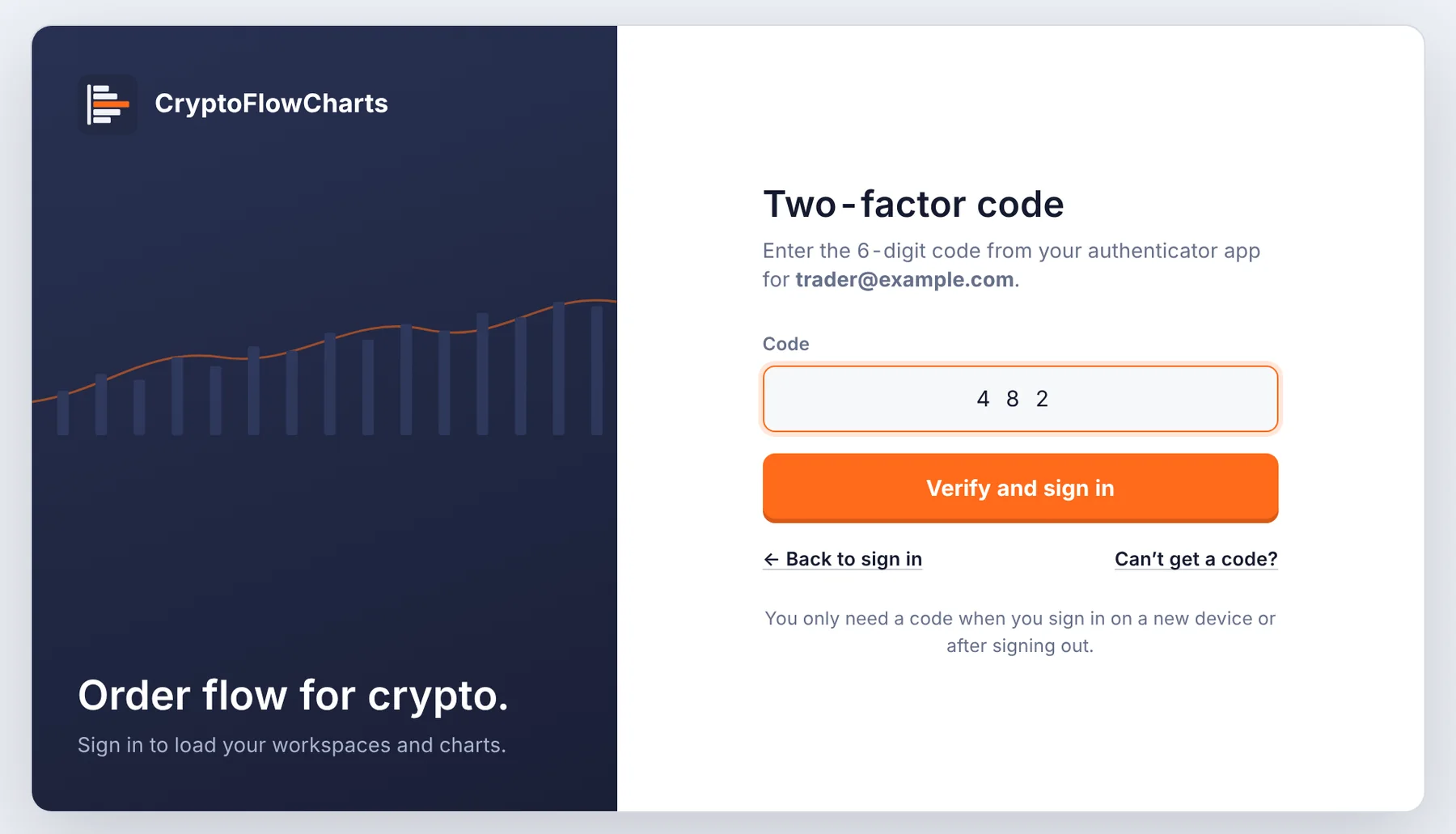
- On the website, the Windows app and the browser version, you type your email and password as usual.
- The box then asks for a Two-factor code. Type the newest 6-digit code from your authenticator app.
- ← Back to sign in returns to the email and password. Can't get a code? explains how to get help: email support@cryptoflowcharts.com from your account's email address.
- If you don't have two-factor on, you never see this step.
Turn it off
- In My account, under Two-factor authentication, click Turn off two-factor.
- Type a code from your authenticator app to confirm.
Change or reset your password
For your security, passwords only change through a link we email you.
- Signed in: in My account, under Sign-in, click Change password. In the app, open the Account page in Settings (click your email at the top of the Settings menu) and click Change… next to Password.
- Forgot it: click Forgot your password? on the sign-in page (or Forgot password? in the app), type your email and click Send reset link.
Open the link, type your new password twice and click Change password. The same password rules apply. If two-factor is on, you'll be asked for a code first.
Your account in the app
Open Settings (the ⚙ at the right of the toolbar) and click your email at the top of the menu on the left. That opens the Account page.
| Row | What it does |
|---|---|
| Plan | |
| Current plan | FREE or PREMIUM. |
| Premium | Upgrade on Free, Manage on Premium. Both open My account on the website. |
| Sign-in | |
| Keep me signed in | Remember the sign-in on this computer. Off: you're signed out when the window closes. |
| Password | Change… opens the website to email you a link. |
| Account | Open on the website goes to My account. |
| This computer | Sign out signs this computer out. |
Free and Premium
| Feature | Free and Premium |
|---|---|
| Charts | Free: up to 3 charts. Premium: up to 50 charts in each workspace. |
| Workspaces | Free: 1. Premium: the maximum. |
| Exchanges | Free: one exchange at a time (any coins on it). Premium: all 5 together. |
| Order-flow tools | Free: one tool, on as many charts as you like. Premium: unlimited, plus Wipeouts and Aggregate exchanges in Market Depth. |
| Technical indicators | Free: up to 3 per chart. Premium: unlimited. |
| Chart types | Free: Candles, Hollow Candles, OHLC, Line, Area and Heikin Ashi. Premium adds Footprint, TPO and Range Bars. |
| Scanners | Free: watchlists, Movers and your own scans. Premium adds Volume spikes, Momentum, Momentum Long and Wake-up. |
| Market Replay | Premium. |
When you hit a Free limit, a small PREMIUM FEATURE card explains it. Upgrade to Premium opens your account on the website; Not now closes it. Full prices are on the Pricing page.
Upgrade, billing and cancelling
- Sign in to My account (or click Upgrade in the app).
- Under Upgrade to Premium, pick Monthly or Yearly.
- Click Continue to secure checkout and pay.
Premium unlocks in the app as soon as the payment goes through.
On Premium, Manage billing in My account opens the secure billing page. There you can change your card, switch between monthly and yearly, download invoices or cancel.
Questions
Do I need a separate account for the Windows app?
No. One account works on the website, the Windows app and the browser version.
Is there a free trial of Premium?
Free is free forever, with no card needed. Upgrade whenever you want the Premium tools.
Can I use my account on more than one computer?
Yes. Sign in with the same email and password on each one.